Best Pomodoro Timers 2026: The Ultimate Guide
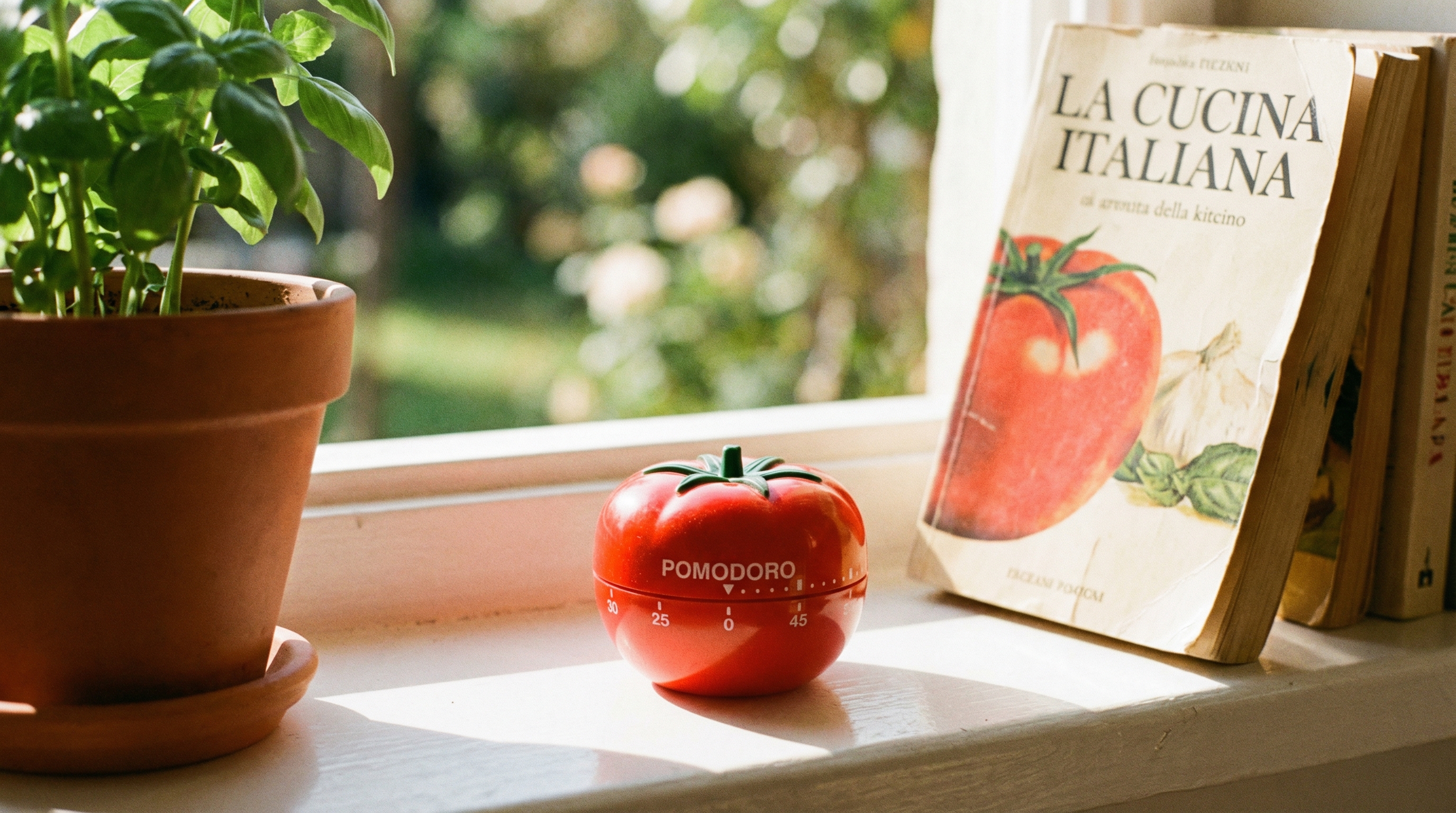
Best Pomodoro Timers 2026: The Ultimate Guide (What to use and how to make it stick)
Pomodoro remains one of the simplest — yet most powerful — ways to structure focused work. In 2026 you’ll find a broad spectrum of choices: tiny physical cubes, minimalist web timers, highly integrated task+timer apps, privacy-first desktop utilities, and new AI-assisted tools that generate task structures and schedule focus time. This guide helps you choose the right tool for your needs and shows practical ways to tie Pomodoro into your calendar and workflows — including using Carly AI to schedule and protect your focus time automatically.
What’s fresh for 2026 (trends & notable 2025 launches)
Late 2025 was a burst of innovation. A few trends to watch in 2026:
- AI-assisted Pomodoro: tools like AI Pomo use AI to convert a short project description into structured tasks and Pomodoro estimates.
- Design-forward timers: PomoFox (pixel-art), Flowave (ambient wave animations), LiquidTimers (drag-and-drop circular timers), Harmony (cozy virtual spaces) emphasize UX as motivation.
- Cross-tool scheduling and calendar awareness: tools increasingly integrate with Google Calendar/Outlook or are designed to be scheduled into your calendar by scheduling assistants like Reclaim.ai.
- Hardware and tactile devices: rotating/flipping cube timers and LED ring units remain popular for screen-free anchoring.
- Inclusive approaches for neurodivergent users: adaptive durations, audio cues, and physical timers are widely recommended for ADHD/time blindness.
These trends mean you can pick a timer tailored to your workflow rather than compromise.
How to pick the right Pomodoro timer (questions to ask)
- Which devices do you use most (phone, browser, Mac, Windows)?
- Do you need calendar/Outlook/Google Calendar integration or automatic scheduling?
- Do you prefer gamification (Forest) or a minimalist distraction-free experience (Pomofocus, Session)?
- Is privacy/offline use important? (pick offline-first or self-hosted open-source)
- Are you working solo, or do you need team/time-tracking features?
- Do you benefit from tactile hardware or audio cues (ADHD/time blindness)?
Answering these will narrow the field quickly.
Best Pomodoro tools of 2026 — recommendations by use case
Below are curated picks based on cross-platform reliability, integrations, accessibility, and emerging 2025 entrants. Short takeaways follow each pick.
Carly Pomodoro — Simple, free web timer
- Carly Pomodoro — Clean, distraction-free web-based Pomodoro timer with session stats tracking. Free to use, no installation required.
Why choose it: Perfect for users who want a simple, elegant timer without any complexity. Accessible from any device with a browser, tracks your Pomodoro sessions and total focus time.
Best overall (cross‑platform + task management)
- Focus To‑Do — Combines Pomodoro timer with tasks, cross‑device sync, analytics, habit tracking, and an extensive free tier. Great balance of features and accessibility.
Why choose it: Works on desktop and mobile, excellent for people who want a built-in task list and cross-device history.
Best for Mac users (native, subscription-free options)
- Cyclework — macOS-native, one-time purchase, Calendar & Reminders sync, improved analytics.
- PomoJoy — minimal, keyboard-first, quick capture while the timer runs for distraction-free note-taking.
Why choose them: Native performance, deep macOS integrations, no subscription required.
Best for Windows / one-time purchase
- Gubb — offline-first native app with a broad productivity toolset (notes, calculator, voice-to-text) and one-time purchase model.
Best lightweight web timer (no install)
- Pomofocus — minimalist, very customizable, templates, lightweight analytics. Ideal when you want to jump into focus sessions on any device.
Best Chrome extensions (browser-focused workflows)
- Marinara 2025 / Pomodoro Technique Timer — classic, customizable, history and toolbar countdowns.
- Otto or Forest extension — if you want site-blocking + gamified motivation.
Choose extensions for browser-centric work and when you want quick start/stop without installing an app.
Best for teams & time-tracking
- Toggl Track — built-in Pomodoro mode, detailed reports, team-friendly project tracking.
Why choose it: Use it when Pomodoro sessions also need billing/tracking or team reports.
Best for ADHD / neurodivergent users
- Physical rotating/flipping cube timers (Rotating Pomodoro Timer, AJIJING, Kaflin, TK3) and apps that support flexible durations and audio cues (Focus Friend, Focus To‑Do).
Why choose them: Physical presence combats time blindness; apps with adjustable session lengths and audio prompts help sustain motivation.
Best hardware Pomodoro timers (screen-free)
- Rotating Pomodoro Timer cube (flip-activated presets), TK3 Cube (silent/vibrate modes), Luxafor and Timeqube for LED signaling.
Why choose them: Minimal friction, excellent for screen breaks or for people who respond better to tactile cues.
Best open-source options
- Pomotroid, FocusTide, ayoisaiah/focus (CLI), Flowkeeper, Tomato (Android via F-Droid).
Why choose them: Self-hosting, privacy, no vendor lock-in, or want to tinker with features.
Calendar, integrations, and automation: make Pomodoro fit your schedule
Calendar awareness is key to making Pomodoro practical in real workdays. Use tools that either sync with your calendar or schedule Pomodoro blocks for you.
Top calendar-aware options:
- FocusCommit / Pomodoro Timer for Google Calendar — embed timers in events, start from the calendar.
- Toggl Track — shows calendar events and starts timers from your schedule.
- Reclaim.ai — auto-schedules focus blocks around meetings and can include Pomodoro links inside blocks.
- TickTick / Chunk — task+calendar integrations that help turn tasks into scheduled Pomodoro sessions.
Using Carly AI to automate Pomodoro scheduling (practical examples)
Carly AI can act as your calendar-first assistant that schedules and protects focus blocks. Example prompts to ask Carly:
- "Carly, schedule four 25/5 Pomodoro sessions tomorrow starting at 9:00 AM, leave 30 minutes between the second and third session, and set my Slack to Do Not Disturb for each session."
- "Carly, convert my 'Write Q1 report' task into 6 Pomodoro sessions and place them on my calendar across Tuesday and Wednesday when I'm meeting-free."
- "Carly, block 90 minutes for deep work on Thursday afternoon and automatically add a Pomodoro timer link to the event (use Pomofocus)."
What Carly does when you ask:
- Finds free windows in your calendar and creates events with clear titles (e.g., 'Pomodoro — Draft Q1 report — 25 min')
- Adds deep-work metadata: sets your status, invites relevant apps to silence notifications, and adds a timer URL in the description.
- Optionally integrates with tools (if you use Focus To‑Do or Reclaim) to add task links or auto-start timers.
These automations reduce friction and keep focus sessions from being disrupted by ad-hoc meetings.
Two step-by-step setups (examples)
- Solo knowledge worker (web + calendar):
- Use Pomofocus for quick web timers and Carly to schedule daily 4×25/5 blocks during your best morning hour.
- Carly creates calendar events named "Pomodoro — Task name" with the Pomofocus link.
- Use a simple browser extension (Marinara or Otto) for site-blocking while the session runs.
- Busy manager (meetings & context switching):
- Use Reclaim.ai or TickTick + Carly to insert Pomodoro blocks automatically in gaps between meetings.
- Carly finds 50–90 minute windows and creates longer deep‑work blocks, or splits into two 25/5 cycles if preferred.
- Set Slack/Outlook to auto-reply or set Do Not Disturb during events.
Advanced tips to get the most from Pomodoro in 2026
- Customize your Pomodoro lengths: 25/5 is a starting point. Try 45/15 or 90/20 for deep creative work.
- Use analytics thoughtfully: review weekly trends rather than obsessing over daily numbers.
- Combine with site/app blockers to reduce temptation during sessions.
- Keep a capture pad or quick-capture tool (PomoJoy / quick note) to record interrupting thoughts without ending the session.
- Pair a ritual: same beverage, short pre-session checklist, or a 30-second breathing exercise to cue focused work.
- For ADHD: consider physical timers, audio cues via headphones, or shorter sessions that scale up.
Troubleshooting: common fail points and fixes
- "I keep getting interrupted": Use longer buffer time after meetings, auto-set Slack/Teams DND, add clear Calendar event descriptions.
- "I can’t start the timer": Use a hardware timer or minimalist web timer for low-friction start/stop.
- "Pomodoro breaks feel wasted": Plan micro-tasks for breaks (stretch, hydrate, quick walk) and use break alarms to avoid overrun.
Final recommendations and next steps
- If you want a simple, free web timer: start with Carly Pomodoro — no installation, no signup, just start focusing.
- If you want cross-platform and task features: start with Focus To‑Do.
- If you want the simplest no-install timer: try Pomofocus and ask Carly to place the links on your calendar.
- If you prefer hardware and tactile cues: get a rotating/flipping cube timer (TK3 or Rotating Pomodoro Timer).
- If privacy or customizability matters: evaluate open-source options like Pomotroid or FocusTide.
Ready-made action to try now with Carly AI:
- Ask Carly to "Schedule three 25-minute Pomodoro blocks tomorrow morning for focused writing and add a Pomofocus link in each event." Carly will find free time, create events, and add the timer link and DND instructions.
Ready to Save Time on Scheduling?
Join the future of work with Carly AI for calendar management.
Related Articles
Debunking the Biggest Myth About AI Assistants
CalBot doesn't control your calendar - it only acts with your permission. Learn the truth about how AI assistants work.
Time Management for Professionals: What the Research Really Says
Meta-analyses spanning thousands of professionals reveal how time management profoundly impacts performance, stress, and well-being. Here's what the latest research shows.
How to Get Organized at Work: A Calendar‑First System (Backed by Research)
A practical, research‑backed calendar‑first system to get organized at work—time‑blocking, email scheduling, weekly reviews, and templates included.