Calendar Time‑Blocking Strategies: How to Protect Deep Work, Batch Meetings, and Get More Done
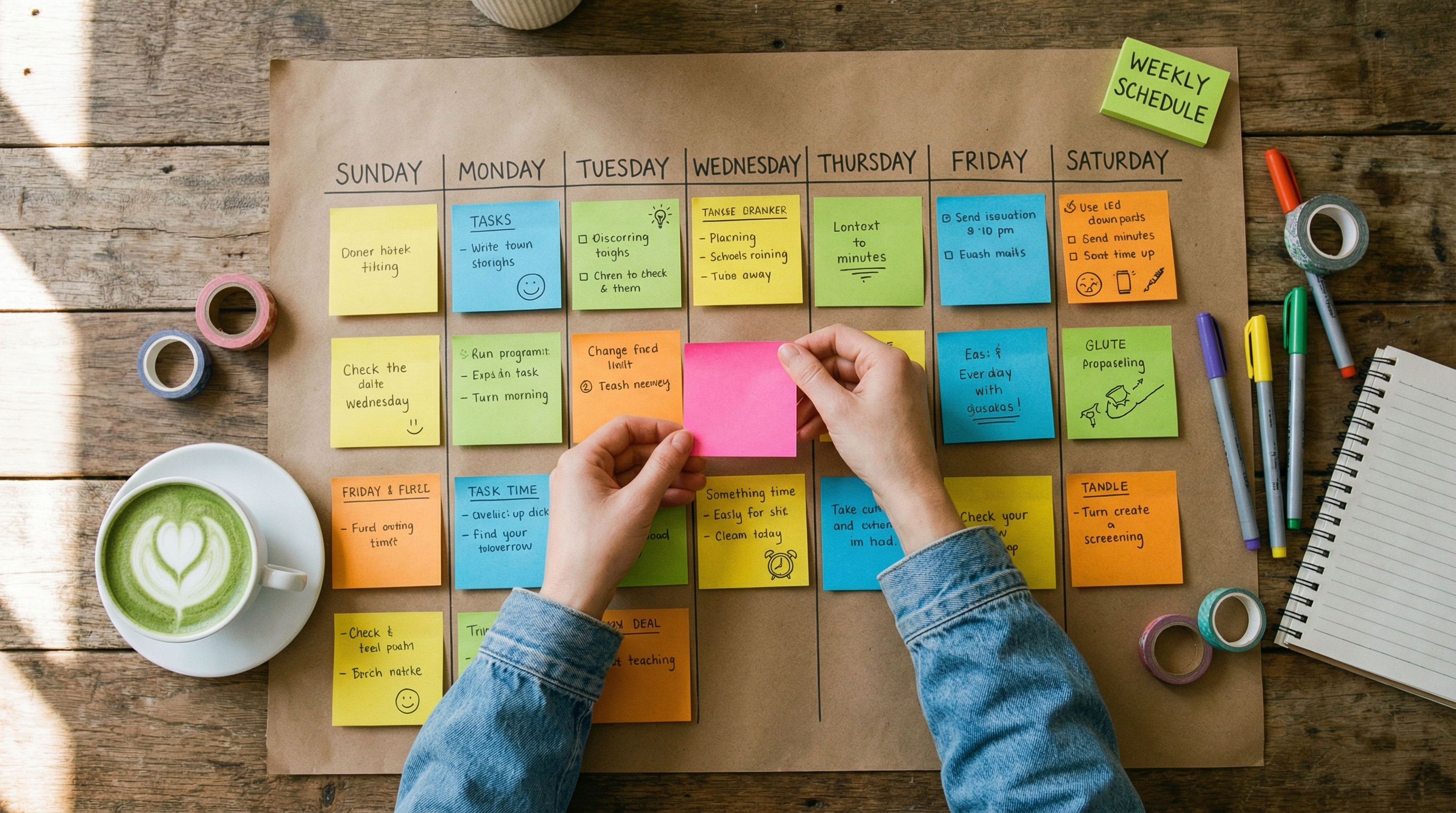
Calendar Time‑Blocking Strategies: How to Protect Deep Work, Batch Meetings, and Get More Done
Time blocking is one of the most effective ways to shape your week, defend focus time, and reduce decision fatigue. But not all time‑blocking approaches are equal. Whether you’re a creative-focused “maker,” a coordination-heavy “manager,” or someone juggling multiple roles, the right calendar strategy can make the difference between constant context switching and predictable progress.
In this guide you’ll find:
- A clear explanation of time blocking vs time boxing
- How Paul Graham’s Maker vs Manager schedules should shape your blocks
- Practical, science‑backed best practices (buffers, energy-aware scheduling, batching)
- Step‑by‑step set up and sample weekly templates for maker, manager, and hybrid roles
- Tools, templates, and automation options for Google Calendar and Outlook
- How to use Carly AI to protect focus time and automate meeting rules
- Metrics and a simple weekly review to keep improving
Table of contents
- Time blocking vs Time boxing — which to use and why
- Maker vs Manager schedules — design blocks around your role
- Time‑blocking best practices (energy, buffers, batching, quarantine reactive work)
- Sample weekly schedules (maker, manager, hybrid) — copyable templates
- Tools, templates and automation: Google Calendar, Outlook, Clockwise, Reclaim, FlowSavvy
- How to implement time blocking with Carly AI (step‑by‑step)
- Metrics and a short weekly review routine
- Quick start checklist
Time blocking vs Time boxing — control the "when" vs the "how long"
- Time blocking: reserve calendar slots for categories of work (e.g., Deep Work, Meetings, Admin, Learning). Blocks give structure and protect attention by defining when you’ll do a type of work.
- Time boxing: assign a fixed duration to a single task and stop when the timer ends (e.g., Pomodoro). Time boxing creates urgency and prevents perfectionism and scope creep.
When to use each:
- Use time blocking when your day needs structure, you have mixed responsibilities, or you need long stretches for complex tasks.
- Use time boxing when you’re fighting procrastination, over‑editing, or when tasks tend to expand indefinitely.
- Hybrid approach (recommended): block time for projects, and within blocks use time boxes for subtasks (e.g., 2‑hour project block with four 25‑minute Pomodoro cycles).
Benefits supported by research:
- Structured time blocking has been associated with large improvements in output and reductions in stress in modern workplace studies. Reported benefits include regained hours per week and higher completion rates for prioritized tasks. Cognitive science explains why: fewer context switches, less attention residue, and reduced decision fatigue.
Maker vs Manager schedules — pick block sizes that match how you think
Paul Graham’s insight is essential for calendar design: makers (writers, designers, engineers) need long uninterrupted stretches to reach flow; managers (product managers, ops, HR) thrive on chunked schedules with frequent coordination. Hybrid roles need to combine both.
Design rules:
- Makers: create multi‑hour deep work blocks (half‑day or at least 2–3 hours), minimize meetings during those blocks, use DND and “automatically decline meetings” where possible.
- Managers: batch meetings into contiguous blocks (morning and afternoon), reserve specific slots for decision work and drop‑in availability, and use async channels to reduce unnecessary meetings.
- Hybrid: adopt a weekly rhythm — theme days or a 2+1 cadence (two deep blocks + one admin/meeting block daily) or dedicate specific days to deep work.
Office hours technique:
- Makers can publish office hours: limited windows where they accept meetings. This protects the rest of the day for deep work and reduces interruptions.
Time‑blocking best practices (practical, actionable)
- Anchor with your energy peaks
- Track your productivity for a week, identify peak cognitive hours (morning, early afternoon, evening), and schedule demanding work then. Reserve low-energy times for admin or routine tasks.
- Use buffers and transition time
- Add 10–30 minute buffers between blocks to absorb overruns, reset, and avoid cascading delays. For high‑risk tasks, block 1.5× your estimated time.
- Batch similar tasks and theme days
- Group meetings, calls, admin, and creative work into blocks or days. Example: Meeting Monday, Deep Work Tuesday/Thursday, Admin Wednesday.
- Quarantine reactive work
- Reserve short “office‑hour” blocks (e.g., 30–60 minutes daily) for ad‑hoc requests, email triage, or quick clarifications so the rest of the day stays protected.
- Make block rules explicit
- Put a clear event title and description that explains what belongs in the block. If it’s protected time, mark it as "Do not book" and enable auto‑decline messaging where available.
- Keep blocks coarse enough to be useful
- Avoid 10‑minute blocks for everything—overly granular calendars are harder to maintain. Aim for 30‑minute minimum, 90–240 minute sweet spots for deep work.
- Schedule breaks and end‑of‑day wind down
- Short breaks between blocks and a daily end‑of‑day ritual (review tomorrow’s top 3) improve recovery and planning.
- Track and iterate
- Measure Focused Hours Kept (see metrics section). Adjust block lengths, buffer sizes, and frequency based on real outcomes.
Sample weekly schedules (copy and adapt)
Below are three patterns you can copy and tweak depending on role and preferences.
A) Maker schedule (engineer, writer, designer — aim for long focus windows)
- Monday–Friday (example):
- 8:30–9:00: Morning setup & MITs (Most Important Tasks)
- 9:00–12:00: Deep Work Block #1 (focus, no meetings)
- 12:00–1:00: Lunch
- 1:00–3:00: Deep Work Block #2 (coding/writing time)
- 3:00–3:30: Break / Short walk
- 3:30–4:30: Office hours / Meetings catch-up (booked only on request)
- 4:30–5:00: Admin and wrap (email, schedule next day)
B) Manager schedule (PMs, people managers — heavy meeting load)
- Monday–Friday (example):
- 8:30–9:00: Daily priorities & quick triage
- 9:00–11:00: Meeting block (team syncs, stakeholder calls)
- 11:00–12:00: Decision work / follow‑ups (short focused session)
- 12:00–1:00: Lunch
- 1:00–3:00: Meeting block (cross‑functional collaboration)
- 3:00–4:00: Deep work / planning (longer uninterrupted block)
- 4:00–5:00: Wrap, async updates, open office hours
C) Hybrid (maker + manager)
- Use a weekly rhythm with theme days and 2+1 daily cadence:
- Tuesday & Thursday: deep work days (no meetings before noon)
- Monday & Wednesday: meeting/coordination days (batch meetings)
- Friday morning: learning/creative; Friday afternoon: admin/review
- Daily: 9:00–11:00 deep work (if possible), 3:00–4:00 office hours for reactive work
Notes:
- Use color coding for block types (Deep Work = blue, Meetings = orange, Admin = gray).
- Put block rules in the event description so teammates know why those slots are protected.
Tools, templates, and automation
Templates
- Downloadable weekly and daily templates (Google Sheets, Excel, PDF) are available from Figma (FigJam), Replicon, Smartsheet, and printable planners. Pick a format you’ll actually use: digital for calendar imports, printable for paper planning.
Calendar tools and automation
- Google Calendar: built‑in Focus Time (on some Workspace plans) lets you mark blocks as Focus Time, optionally auto-decline meetings and enable Do Not Disturb. You can also use Google Apps Script or the Calendar API to programmatically create focus events.
- Outlook: lacks a native auto‑focus scheduling feature like Google. Workarounds include using sync to Google or third‑party tools to automate focus blocks.
- Advanced scheduling automations: Clockwise, Reclaim.ai, and FlowSavvy integrate with Google Calendar to create and protect Focus Time, resolve conflicts, and automatically reschedule low‑priority meetings.
- Zapier: good for connecting task managers (like Todoist, Asana) to calendars to auto‑create blocks when tasks are due.
Choosing tools
- If you need automatic insertion and conflict resolution, use Clockwise or Reclaim with Google Calendar.
- If you primarily need consistent boundaries and prefer manual control, Google Calendar + Carly AI + your weekly template is lightweight and reliable.
Implementing time blocking with Carly AI (step‑by‑step)
Carly AI is designed to help you protect your calendar rules and eliminate surprise bookings while still making scheduling frictionless.
- Audit your week (10–20 minutes)
- Review last week’s calendar to identify interruptions, long meetings, and wasted time. Note your energy peaks and the typical meeting load.
- Set preferences in Carly (Dashboard → Preferences)
- Use natural‑language preferences like:
- “No meetings before 11:00 AM on weekdays”
- “Only book 30‑minute meetings Monday–Friday 1pm–5pm”
- “Do not schedule meetings on Tuesday mornings”
- Create recurring protected blocks
- Add recurring Deep Work blocks or “No Meeting” windows in your calendar.
- Publish office hours and availability
- If you're a maker, set 1–2 short weekly office‑hour windows (e.g., 3:30–4:30 Tue/Thu).
- Let Carly manage meeting rules when confirming times
- Carly will apply your preferences when proposing times to others and will decline or avoid booking during protected windows. Carly creates events and manages changes once times are confirmed—so you won’t be double booked.
- Use buffers, default durations, and location defaults
- Configure buffer rules (e.g., 5 min before/after meetings) and default meeting durations (e.g., 25 or 50 minutes instead of 30/60) to keep your day flowing.
- Weekly review and tweak
- In your weekly review, check how often focus blocks stayed intact and adjust preferences or durations in Carly accordingly.
Practical Carly examples (phrases to paste into Preferences)
- “No meetings Monday, Wednesday mornings at 9–12.”
- “Only schedule 25‑minute meetings unless confirmed by me.”
- “I prefer meetings back-to-back.”
Metrics and a short weekly review (5–10 minutes)
Track these simple metrics to see if blocking is working:
- Focused Hours Kept: hours you had protected deep work that stayed unbooked / total protected hours. Target: ≥70% initially.
- Meeting load: average number of meetings per day and total weekly meeting hours. Aim to reduce unnecessary meetings by batching.
- Interruptions per day: count unexpected ad‑hoc meetings or unscheduled calls.
- Task completion rate: percentage of MITs completed each day.
Weekly review checklist
- Which blocks were honored? Which were broken and why?
- Did you hit your peak‑time deep work? If not, move blocks to match energy.
- Adjust buffers if you had constant overruns.
- Close the week with three priorities for the next week and schedule them in first.
Common mistakes and how to avoid them
- Over‑granular blocking: avoid 10‑minute increments for everything—too rigid and unsustainable. Use 30–90 minute minimums for real work.
- No buffers: results in perpetual lateness and stress—add short transition windows.
- Not communicating rules: publish office hours and use clear event titles so teammates respect your blocks.
- Not iterating: run a 2‑week experiment, collect metrics, then tune.
Quick start checklist (10 minutes to get started)
- Audit last week’s calendar for one pass and note your energy peaks.
- Block two weekly deep work windows (2–3 hours each) and create one daily 30‑60 minute office hour.
- Configure Carly preferences: no meetings before <time>, buffer minutes, default durations.
- Color‑code blocks and add short descriptions to events.
- Track Focused Hours Kept at the end of the week and adjust.
Closing notes
Time blocking is a flexible method—treat your first week as an experiment. Makers should bias toward longer blocks and publish office hours; managers should batch meetings and protect decision time; hybrids should use a weekly rhythm and the 2+1 cadence.
Carly AI can make the difference between a well‑intentioned calendar and an enforced set of boundaries: use preferences, buffers, and Availability View to keep your focus time safe while still letting scheduling happen smoothly.
If you want, I can:
- Generate a personalized weekly time‑blocking template (Google Calendar import + color codes) based on your role and timezone.
- Create example Preference phrases for Carly tailored to your work style (maker/manager/hybrid).
- Walk you through automating focus blocks in Google Calendar or connecting Reclaim/Clockwise.
Start small, protect your peak hours, and iterate—your calendar should work for you, not against you.
Ready to Save Time on Scheduling?
Join the future of work with Carly AI for calendar management.
Related Articles
Calendar Scheduling Best Practices: A Practical, Research-Backed Guide
Calendar Scheduling Best Practices: A Practical, Research-Backed Guide
Best AI Email Assistants: Productivity Apps for 2026
A comprehensive guide to the top AI email assistants of 2026, comparing features, privacy, and workflows to help you reach inbox zero.